

PagesExtensions · 30 / 37
New in v1.4.0
Extensions
New in QuantCraft v1.4.0. This page describes functionality that ships with v1.4.0, the next major release. The current release is v1.3.0, which does not include it yet.
Extensions add things to QuantCraft that it does not ship with: a market data source for your charts and backtests, a panel of your own, tools the AI assistant can call, a colour theme, or a connection to your broker. You install them, decide what each one may do, and turn them on and off whenever you like.
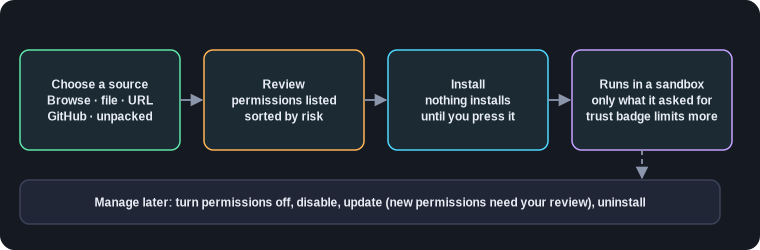
Every extension runs in a sandbox. It can only do what it asks for before you install it, and you can take permissions back later.
This page covers using extensions. To make one, see Building extensions.
| Document | What it covers |
|---|---|
| This page | Installing, trust, permissions, managing, updates, safe mode |
| Data extensions | Using a data extension for charts, backtests, runs, fundamentals and the Screener |
| Broker extensions | Trading through a broker extension: limits, confirmations, kill switch |
| Building extensions | Creating, running, debugging and packaging your own |
| Extension examples | Working examples you can paste |
| Extension API | The reference: manifest, permissions, the qc API |
Where in the UI
| Where | How to get there |
|---|---|
| Extensions page | Navbar → Extensions. Tabs: Browse, Installed, Developer |
| Sidebar icons | Extensions that have a panel show an icon in the extensions rail; click it to open the panel. Use its menu for Open, Restart, Reload, Logs, Pin, Settings, Disable and Uninstall |
| Footer items | Extensions can show a small status item in the app footer. The footer's Manage extensions entry lets you hide or reorder them |
| Data sources | Footer → Data: choose which extension supplies bars, live ticks, symbols, prices and fundamentals |
| Trade provider | Footer → Trade: choose where orders go (see Broker extensions) |
| Themes | Settings → Appearance |
| AI tools | The chat composer's tools button lists an extension's AI tools, each with its own switch |
If you do not see Extensions in the navbar, the feature is not enabled in your build.
Installing an extension
Open Extensions and use Install extension, or drop a .qcext file anywhere on the page.
| Source | When to use it |
|---|---|
| Browse tab | The catalog of published extensions: search, filter by type, sort. Click one, review it, Install |
| From file | A .qcext package you downloaded or built |
| From URL | Paste a link to a .qcext package |
| From GitHub | A public repository. Pick a release (a release with a .qcext file installs as-is, otherwise the source is packaged for you) or a branch. A branch installs the current commit as Unverified and does not update by itself |
| Load unpacked | A folder on your computer (your own project). Needs Developer mode, and it runs as a Developer extension |
Before anything is installed you see Install <name>? with the full list of what it will be able to do, sorted by risk. Nothing is installed until you press Install. An update that asks for new permissions shows what was Added, Removed and unchanged.
Trust: who made it
Each extension shows badges so you know what you are installing.
| Badge | Meaning |
|---|---|
| Verified publisher | Signed by a publisher QuantCraft recognises |
| Unverified | Not signed by a recognised publisher (a sideloaded file, a GitHub branch, a URL). It runs, but you are trusting the source |
| Developer | Loaded from a folder with Developer mode on: your own work in progress |
| Self-signed | Built and signed on someone's machine with their own key. This is not the same as Verified |
| Fork / Modified | Copied from another extension, or its files differ from the package that was installed |
| Sandboxed engine | Runs a WebAssembly module in a sandbox: no network or files of its own |
| Runs Python code | Runs a Python program. A verified extension (or Developer mode) runs it on your computer; any other install runs it in a sandbox with no network of its own |
| Runs its own program | Ships a native program that runs on your computer, outside the sandbox. Only a Verified extension, or your own project with Developer mode on, can run one |
Some things are restricted by trust, not only by permission:
- Placing orders is allowed only for a Verified extension, or your own Developer project while Developer mode is on. An unverified extension can never trade.
- AI tools from an unverified extension start off; you switch them on yourself.
- Native programs need Verified or Developer mode.
Permissions
An extension lists the permissions it needs. They are shown at install, on the Permissions tab of its page, and again whenever an update asks for something new. Risk is shown as High, Medium or Low.
| Permission | Risk | What it lets the extension do |
|---|---|---|
| Place orders in your brokerage account | High | Place, change and cancel orders and read your balances and positions through the broker it connects to, within the limits you set. Only for Verified extensions or your own project in Developer mode |
| Store and read secrets | High | Keep secrets such as API keys on this computer. They are not encrypted, and other extensions cannot read them |
| Connect to the listed domains | Medium | Talk to exactly the websites shown, over HTTPS. Nothing else |
| Start backtests and forward runs | Medium | Run your own workspace strategies. It asks you the first time |
| Run the screener | Medium | Run a stock screen. It asks you the first time |
| Use your AI connection | Medium | Spend your AI credits |
| Run its own program | Medium | Run a WebAssembly, Python or native engine |
| Add AI tools | Low | Give the assistant extra tools |
| Read price bars / fundamentals / calendar events | Low | Read QuantCraft data (read-only) |
| Provide market data | Low | Be a data source |
Good to know:
- No permission gives access to your files, your code or other extensions' data.
- Tool permissions that ask on first use (Allow once, Always allow, Deny) time out as Deny after 60 seconds. Always allowed grants are listed on the Permissions tab with Revoke.
- A permission you turn off takes effect immediately; the extension then gets "permission denied" when it tries to use it.
- Extensions never see your login or broker credentials.
Managing extensions
Open an extension from Installed to see its page.
| Tab | What is there |
|---|---|
| Overview | What it does, version, publisher, license, Open, Disable, Uninstall |
| Permissions | What it may do, with switches where a permission can be taken back, and Always allowed grants |
| Settings | The options the extension offers (fields, toggles, secret keys, a data-source Set up… wizard for some). Values are saved on this computer |
| Activity | How many calls it made this week and how much data it used |
| Changelog | What changed in each version |
Other things you can do:
- Disable keeps it installed but off. Uninstall removes it, and asks whether to delete its saved data too. Clear data wipes only its stored data and keeps your secrets.
- View source shows an installed extension's files read-only (when it declares an open-source license). Fork to project copies them into a new project you can edit; the installed copy is never changed.
- Logs shows what the extension reported: errors, warnings and info, with filters and a copy button.
- Restart brings back an extension that stopped.
Updates
The Updates area lists new versions. Update all applies the ones that need no new permissions; any update that asks for more is left for you to Review. You can turn on auto-update for extensions that stay within their permissions.
Safe mode
If QuantCraft closes unexpectedly while an extension is running, it starts in safe mode: all extensions are off and a banner explains what happened. Your files and runs are not affected. You can Re-enable all, Re-enable all but the suspect, or Keep all off, and view a crash report.
Things to know
- Extensions run in the main window. A pop-out window (a chart, the Screener, trading) uses the app's default sources.
- A cloud run cannot use an extension data source or broker, because extensions run on your computer. QuantCraft asks whether to switch to built-in data or run locally instead.
- If an extension fails, QuantCraft tells you which one and why, keeps your saved choices, and carries on with the default meanwhile. It never silently swaps one broker for another.
- An extension stores its data on this computer. Uninstall with Delete data removes it.