

PagesBroker extensions · 32 / 37
New in v1.4.0
Broker extensions: trading through your own broker
New in QuantCraft v1.4.0. This page describes functionality that ships with v1.4.0, the next major release. The current release is v1.3.0, which does not include it yet.
A broker extension connects QuantCraft to a brokerage that is not built in. Once you choose it, click-to-trade, the options tab, your open orders and positions, Agents and forward / bulk runs all trade through it, and its account appears in Trading accounts next to your other trading accounts.
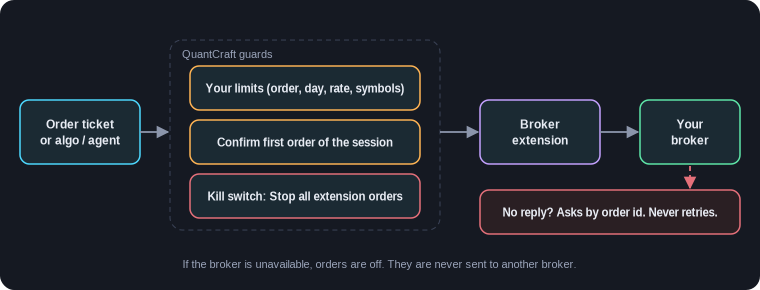
Orders move real money (unless the broker is a paper account). QuantCraft puts limits, a confirmation and a kill switch between the extension and your broker. Read this page before you turn one on.
Who may trade
| Extension | May place orders? |
|---|---|
| Verified publisher | Yes, after you choose it and set your limits |
| Developer (your own project, Developer mode on) | Yes, while Developer mode stays on |
| Unverified (a file, URL or GitHub install) | Never. It cannot be chosen as a trade provider |
The extension must also hold the permission Place orders in your brokerage account (High risk). Turn it off, disable the extension, or switch Developer mode off, and trading stops at once.
The extension's broker keys are stored on this computer as secrets and are not encrypted. Use a key with only the rights it needs (paper or trade-only, no withdrawals).
Turn it on
-
Install and set up the extension (its Settings tab holds the broker key).
-
Click Trade in the footer and, next to Orders go to, choose the broker. The footer then shows the broker's name and PAPER or LIVE.
-
The first time, QuantCraft asks for your trading limits. Orders through this broker stay off until all three are set:
Limit Meaning Max value of one order ($) An order above this is refused before it reaches the broker Max total per day ($) The day's orders (counting each as sent) cannot add up to more Max orders per minute A rate limit Only these symbols (optional) Anything else is refused The per-order limit cannot be higher than the daily one. Change them any time from Trade → Trading limits….
To go back, pick the built-in provider again from the same menu. Choosing a broker never changes your other trading accounts or their data.
Placing orders
The ticket shows the broker's name and PAPER / LIVE (a broker that declares both shows PAPER / LIVE). Order types, time in force, fractional shares and notional (dollar) amounts offered in the ticket follow what that broker supports; anything it does not offer is not shown.
- The first order of each session asks for a confirmation: Send this order through <broker>? with the side, size, symbol and mode. After you confirm, later orders go through without asking again, within your limits. Don't send sends nothing.
- A value that cannot be worked out (a market order with no known price) cannot be checked against your limits and is refused: give a limit price or a dollar amount.
- Options: the Options tab appears only if the broker supports options; otherwise it is disabled with the reason.
- Your orders and positions (Trade Manager, chart markers, the dashboard account) come from the broker. History is paged when the broker supports it.
- Symbols: the Trade sidebar's symbol list comes from the broker (stocks, crypto, and so on), never from the built-in provider, while a broker is selected.
If the broker does not answer
QuantCraft never retries an order and never guesses. If a reply is lost or late, it asks the broker for that order by its unique id a few times. If that does not settle it, you see "may be live — check your broker" with the id, and the order still counts against your daily limit. A definite refusal by the broker (rejected, insufficient funds, not tradable, market closed…) is shown as "<broker> rejected the order".
If a broker stops being available, orders are off. They are never sent to another broker on their own.
Kill switch
Trade → Stop all extension orders stops every broker extension from placing, changing or closing orders at once, including running algos. The footer shows STOPPED. Cancelling a working order still works, because it only reduces risk. Release the kill switch from the same menu to resume.
Algos, Agents and runs
- A forward or bulk run (and an Agent run) on a broker extension asks you once, when it starts, to confirm that it will place orders through that broker on its own, within your limits, while QuantCraft stays open.
- Orders from algos follow the same limits and the kill switch. If the broker cannot be reached, or an order's result stays unknown, the run stops trading; it does not switch to another broker.
- Not supported: stop-loss / take-profit legs attached to an order (place the exit yourself), runs in the cloud, and resuming a bulk run through a broker after restarting QuantCraft.
Trading accounts page
Each broker you may trade through is listed in Trading accounts, after your other accounts: balances, PAPER / LIVE, Open P&L and Today P&L, with Details and Refresh. Its ACTIVE badge is the trade provider: click ACTIVATE to make it the provider, or activate one of your other accounts to go back to it. Edit, delete and data sharing are managed from the Extensions page instead.
Profit and loss is calculated by QuantCraft from the positions and the account (today = equity now minus the last close), not taken from the extension.
Audit log
Every order sent through an extension, and every answer, is recorded on the extension's page under Orders (Time, Action, Result, Detail), with Export log.
Limits of this feature
- Pop-out windows cannot place orders through a broker extension; use the main window.
- Only one QuantCraft window should be connected at a time. A second window replaces the first, and an order in flight at that moment shows as unknown.