Dependencies
QuantCraft runs your strategy code in a dedicated Python environment used only for the IDE: Run / Test, Format Document, and package install/remove all use that same interpreter and its libraries.
This page explains how that environment works and how to add or remove Python packages from it.
The environment (what you’re managing)
- Single IDE environment — There is one QuantCraft IDE Python environment per machine (the one the app’s Python backend uses). It is not tied to a specific workspace folder on disk; every project and every open file shares this environment when you run or test code.
- Same packages everywhere — If you install
pandashere, any script you run from the IDE canimport pandas, regardless of which workspace folder your.pyfiles live in. - Backend required — Installing or removing packages talks to the QuantCraft Python backend. If the backend is not running or not reachable, those actions will fail (you may still see a cached list of packages until the app can refresh it).
- What’s already there — QuantCraft ships with a base set of packages needed for the IDE (strategy APIs, plotting, brokers, formatting, and so on). Those appear in the package list together with anything you add. You should treat the base set as part of the product; removing something the IDE relies on can break Run, Test, or Format Document.
Viewing installed packages
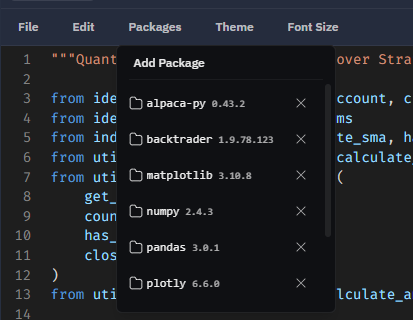
- In the IDE editor toolbar, open Packages.
- Below Add Package, you’ll see a scrollable list of installed distributions.
Each row shows the package name and, when available, its installed version. The list is meant to reflect top-level installs (what you or the product installed directly), not every transitive dependency hidden inside another library.
Adding a Python package
- Open Packages in the editor toolbar.
- Click Add Package.
- In the dialog, enter a PyPI distribution name — for example
pandasornumpy— using only letters, digits, dots, hyphens, and underscores (one name per install; version pins likepandas==2.2.0are not accepted in this field). - Click Add. The app runs
pip installin the IDE environment. This can take a while for large packages. - On success, the dialog closes and the new package appears in the list. You can
importit in your scripts immediately after a successful install.
If install fails
- The dialog may show an error under the field.
- A message is also written to the Output panel at the bottom (in red).
- Typical causes: typo in the name, package not on PyPI, network or proxy issues, or incompatible Python version for that package.
Removing a Python package
- Open Packages in the editor toolbar.
- Find the package in the list.
- Click the remove (×) control on that row.
- Read the confirmation text — uninstall is performed with
pip uninstalland cannot be undone from the UI. - Confirm Remove.
If removal fails
- The app may show an alert with the server error.
- Do not remove packages you did not add unless you understand the impact; uninstalling a dependency of the IDE or of another listed package can leave the environment in a broken state until you reinstall what you need.
After a successful add or remove, the editor’s autocomplete index is refreshed so import suggestions and member completion match what is actually installed.
Relationship to your workspace files
- Workspace folders hold your
.pyfiles, folders, and saved workspace data — they do not replace the IDE’s Python environment. - Dependencies are global to the IDE environment on that machine, not “per folder” in the Packages UI.
- For import completion, the editor also suggests your workspace modules (for example files inside a folder you created). That is separate from PyPI packages but appears in the same editing flow.
Quick reference
| Goal | Where to go |
|---|---|
| See what’s installed | Packages menu (editor toolbar) |
| Install from PyPI | Packages → Add Package → enter name → Add |
| Uninstall | Packages → × on the row → confirm Remove |
| Diagnose install errors | Output panel + message in the Add Package dialog |
Tips
- Prefer adding the smallest set of libraries your strategy needs; large stacks slow down installs and upgrades.
- After changing packages, if something odd happens in Run or Test, check the Output panel for import or pip-related errors.
- Keep using Format Document and the editor as usual; they use the same environment as Run and Test.